Can You Live Stream with a GoPro? Problems, Solutions & Best Practices
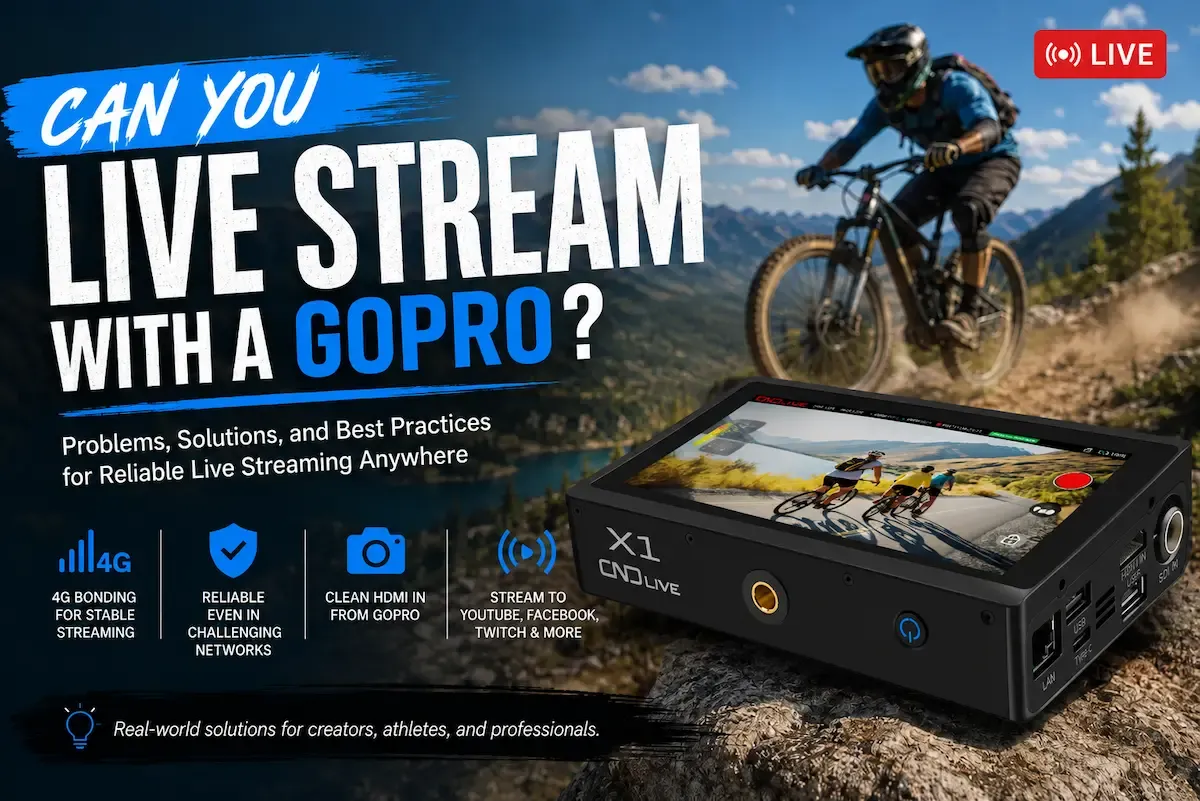

Action cameras have changed how live content is created. Small, rugged, and capable of impressive image quality, GoPro cameras are now widely used not only for recording adventures, but also for broadcasting them live. From cyclists and runners to journalists and travel creators, many people ask the same question:
Can you live stream with a GoPro?
The honest answer is yes — but the quality and reliability of your live stream depend heavily on how you do it. In real-world conditions, especially outdoors or on the move, the default method provided by GoPro is often not enough. This article explains what works, what breaks down in practice, and how professional streamers solve those problems.
GoPro’s Built-In Live Streaming: What It Does Well — and Where It Falls Short
GoPro includes a native live streaming feature in its cameras, accessible through the official GoPro Quik mobile app. The idea is simple. You connect the GoPro to your smartphone via Wi-Fi, select a supported platform such as YouTube, Facebook, or a custom RTMP endpoint, and use your phone’s internet connection to broadcast live.
For short, casual streams in stable environments, this approach works reasonably well. It is easy to set up, requires no additional hardware, and lowers the barrier for beginners who want to experiment with live video.
However, once you step outside controlled conditions, several limitations become very clear.
The Real-World Problems With GoPro Live Streaming
The biggest issue is network reliability. When using the GoPro app, your live stream depends entirely on a single connection — usually a mobile hotspot. In outdoor environments, mobile networks fluctuate constantly. Signal strength changes as you move, cell towers become congested at events, and even brief drops in connectivity can cause visible stuttering or end the stream entirely. For creators covering sports, races, or live events, this instability is unacceptable.
Another common problem is heat. Live streaming requires the camera to encode video continuously while also maintaining wireless communication. Many users also choose to record internally at the same time as they stream, which further increases processing load. In warm weather or direct sunlight, GoPro cameras can heat up quickly, leading to thermal warnings or automatic shutdowns. This is not a rare edge case; it is a frequent complaint among outdoor streamers.
Battery life is also a limiting factor. Streaming drains power far faster than standard recording. Even with a fully charged battery, long sessions are difficult without external power, which is not always practical when moving.
Finally, the app-based workflow offers limited control. Stream bitrates, redundancy, monitoring, and failover options are minimal. If something goes wrong mid-stream, there is little you can do to recover quickly.
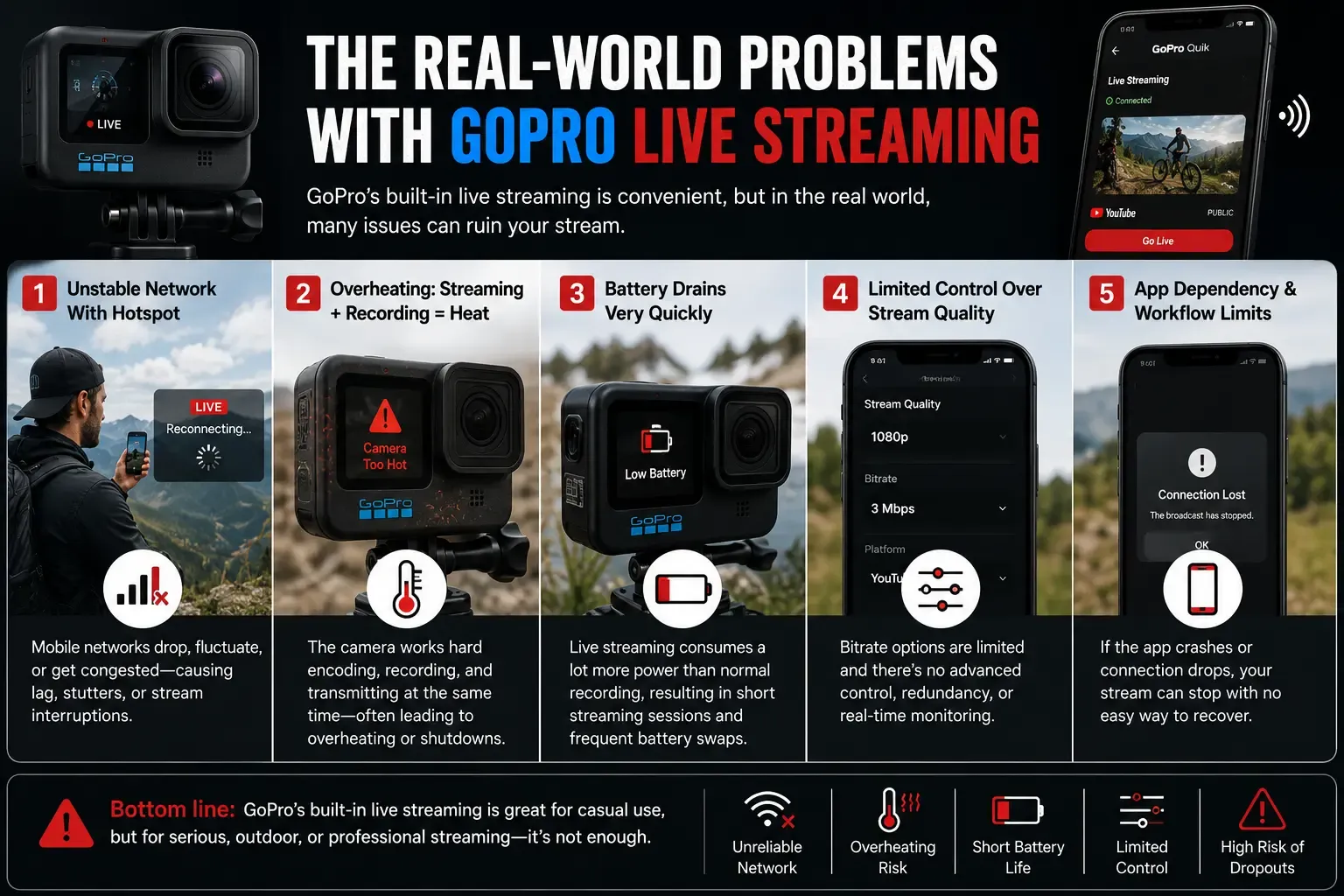
These are not flaws in GoPro as a camera. They are simply the result of asking a small, self-contained device to handle capture, encoding, and network transmission all at once.
A Professional Approach: Separating the Camera From the Network
In professional broadcasting, one principle is almost universal: cameras focus on image capture, while dedicated devices handle encoding and transmission. Applying this principle to GoPro live streaming leads to a far more reliable workflow.
Instead of letting the GoPro manage networking, you can output clean video via HDMI and hand that signal to a dedicated bonding encoder. This approach dramatically improves stability, reduces heat and power consumption on the camera, and allows for much better control over how the stream is delivered.
Using a Bonding Encoder With GoPro
The CNDLive X1 is designed specifically for field streaming scenarios where reliability matters more than convenience. It accepts HDMI input from cameras such as GoPro and handles all network transmission independently.
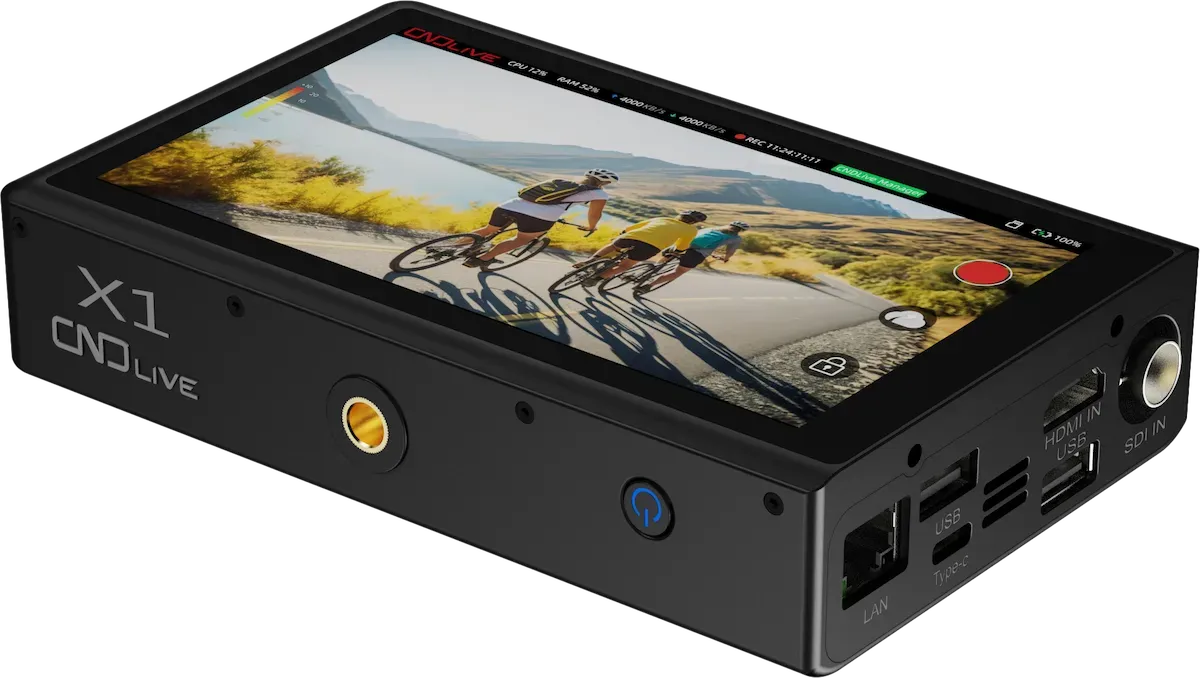
Instead of relying on a single mobile connection, the X1 can bond multiple cellular networks together. This means it can combine two or more SIM cards, along with Ethernet or Wi-Fi if available, into a single, resilient uplink. If one network weakens or drops, the others continue carrying the stream without interruption.
From a practical standpoint, this changes everything. The GoPro is no longer responsible for live encoding or network management. It runs cooler, lasts longer on battery, and behaves exactly as it would during normal recording. The encoder, meanwhile, is purpose-built to handle unstable networks and long live sessions.
How the GoPro + X1 Workflow Works in Practice
The setup is straightforward. The GoPro outputs video via HDMI, which feeds directly into the X1 encoder. The encoder compresses the signal and sends it to your chosen platform using RTMP or SRT, depending on your workflow. Because the X1 handles bonding internally, the outgoing stream remains stable even in challenging network conditions.
From the viewer’s perspective, the result is a smoother, more consistent broadcast. From the creator’s perspective, the system is easier to manage under pressure.
Real-World Live Streaming Scenarios
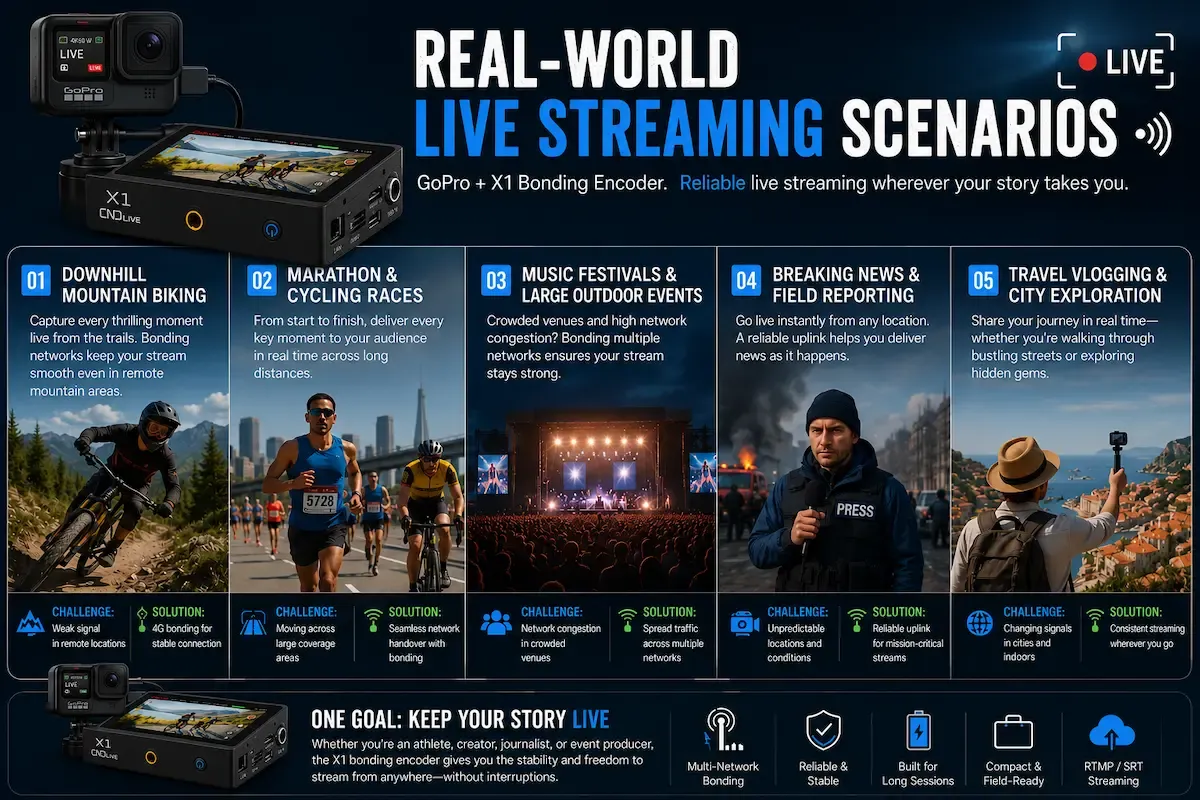
This workflow is widely used in environments where a phone-based solution would struggle. In downhill mountain biking, for example, the camera operator is constantly moving through areas with changing signal strength. Bonded cellular connections allow the stream to survive brief coverage gaps that would otherwise end a broadcast.
In marathon and cycling races, coverage often spans many kilometers. A single mobile network cannot guarantee consistency across such distances, but bonding dramatically improves reliability.
Music festivals and large outdoor events present a different challenge: network congestion. Thousands of attendees are competing for bandwidth at the same time. By spreading traffic across multiple carriers, a bonding encoder reduces the risk of severe bitrate drops.
The same principles apply to breaking news, field reporting, and travel streaming, where fixed internet is unavailable and conditions change unpredictably.
Best Practices for GoPro Live Streaming
Regardless of the setup you choose, some fundamentals always apply. Managing heat is critical, so avoiding direct sunlight and unnecessary features can significantly improve stability. External power is highly recommended for longer streams, and locking resolution and frame rate prevents sudden encoder stress.
When using a bonding encoder, additional best practices come into play. Using SIM cards from different carriers increases redundancy. Monitoring network status through the encoder interface allows you to react before problems become visible to viewers. Keeping firmware up to date ensures optimal bonding performance and protocol support.
Camera Compatibility: Common Questions Answered
Does the X1 encoder work with the new DJI Pocket 4?
Yes! The DJI Pocket 4 is fully compatible with hardware encoders like the CNDLive X1. Because modern DJI cameras support video out via their USB-C port, the recommended method is to use a UVC to HDMI converter for connection. Connect the DJI Pocket 4 to the UVC to HDMI converter via USB-C cable first, then connect the converter to the X1 encoder with an HDMI cable to deliver a clean, stable video output.
Can I use the DJI Osmo Action 5 with this setup?
Absolutely. The DJI Osmo Action 5 Pro is officially available and works perfectly for professional live streaming. Just like the Pocket 4, you can bypass the wireless app entirely. It requires a UVC to HDMI converter as the intermediate adapter: connect the camera to the converter through USB-C for UVC signal transmission, then link the converter to your encoder via HDMI cable for a rock-solid, high-quality clean HDMI feed.
What about Insta360 cameras?
Compatibility with Insta360 cameras varies widely. Many of their models are designed primarily for 360-degree capture and do not offer a clean HDMI output, making them unsuitable for hardware encoders. For traditional action-camera-style streaming, GoPro, DJI Action, and DJI Pocket models remain your most reliable choices.
What is the best way to connect these cameras to a bonding encoder?
For modern action cameras and gimbals (like the DJI Action 5 and Pocket 4), the suggested connection method is using an HDMI to USB Type-C cable. This allows the camera to pass a clean, uncompressed video signal directly into the encoder for processing. It keeps your camera running cooler, saves battery life, and offloads all the network transmission to the dedicated encoder.
Why This Matters for Serious Live Streaming
The key takeaway is simple. GoPro can live stream, but the built-in method is designed for convenience, not resilience. When your stream matters — whether for an event, a race, a news story, or a professional production — separating camera and network responsibilities is the proven approach.
This is not theoretical advice. It reflects how live video is handled in broadcast, sports, and field production worldwide.
Final Thoughts
So, can you live stream with a GoPro? Absolutely.
For short, casual sessions, the official app may be enough. But for outdoor, mobile, or mission-critical streaming, pairing a GoPro with a bonding encoder like the CNDLive X1 transforms it into a reliable professional tool. The result is fewer interruptions, better image stability, and far less stress when you are live.